

Hotels optimize their websites for booking conversions by making it easy for travelers to find what they need, trust the property, and book. Clear room and rate details, quality photos, guest reviews, visible booking buttons, fast mobile pages, and a simple checkout all help.
More traffic doesn't always mean more reservations, but small changes can make a big difference. When pricing is easy to understand and payment takes just a few taps, travelers are more likely to book directly with you.
In this guide, you'll learn how to improve each of these areas, with practical examples along the way.
Step 1: Test Your Hotel Website Like a Guest
Before changing anything, go through your booking process as a potential guest. Small obstacles your team may no longer notice are often the ones that stop website visitors from completing a reservation.
Follow the Booking Process From Room Selection to Confirmation
Choose a typical stay—for example, two adults staying three nights over a weekend—and follow the booking process from your homepage:
- Find a suitable room: Look for a room that fits the stay.
- Choose dates and guests: Enter the dates and number of adults and children.
- Compare rooms and rates: Review the available options.
- Enter guest details: Fill out the form and review the payment information.
- Check payment and confirmation: Use your booking provider’s supported test process to verify these steps without placing a real charge.
Begin on a phone, then repeat the same journey on desktop. Note any moment where you hesitate, re-enter information, see an error, or can't continue.
Create a Short Fix List and Record Your Starting Results
Turn your notes into a simple list of issues. For each one, write down:
- Page or booking step: Where it happened, such as a room page or the payment step.
- Problem: What went wrong.
- Action needed: What should change and who can make the change.
Start with anything that blocks a reservation, like a broken booking button or a failed payment, before moving on to smaller presentation issues.
If Google Analytics tracks completed reservations, note your current number of bookings and your hotel website booking conversion rate. These figures give you a baseline to measure progress against.
If bookings aren’t being tracked yet, ask your booking provider to set that up before you start making changes. Otherwise, you won’t know whether your updates made a difference.
Learn more about what metrics hotels should track in digital marketing.
Step 2: Make Room Pages Easier to Book From
Room pages help guests decide whether your hotel fits their trip. If they can't quickly find basic details, they may check an OTA listing or book elsewhere. Start with a room page that caused hesitation during your walkthrough.
Fill the Information Gaps That Make Guests Hesitate
Check whether guests can quickly find:
- Beds: Number, size, and type, such as one king or two queens.
- Occupancy: Maximum number of adults and children, plus whether extra beds or cribs are available.
- Amenities and included services: Such as air conditioning, a kitchenette, breakfast, parking, or Wi-Fi.
- Accessibility details: Such as step-free access, a roll-in shower, or a ground-floor location.
Add any missing details besides accurate photos of that room type. Use the same core details, in the same order, across room pages so guests can compare options without adjusting to a different layout each time.
Show Why Guests Should Choose This Room and Book Direct
The hotel industry benefits from specificity. In practice, that means explaining what makes each room different. Instead of saying a room is "ideal for families," describe its actual capacity and sleeping arrangement.
For example: "Sleeps up to four, with one queen bed and two single beds in a separate area."
Place relevant guest reviews, hotel contact details, and genuine benefits of booking directly near the point where guests choose a room. If an offer has conditions, such as a minimum stay for a free airport transfer, state them beside the offer.
Find out how to bring more direct traffic to your hotel in our blog: How Can Hotels Reduce OTA Dependency With SEO?
Step 3: Make Prices and Booking Conditions Clear
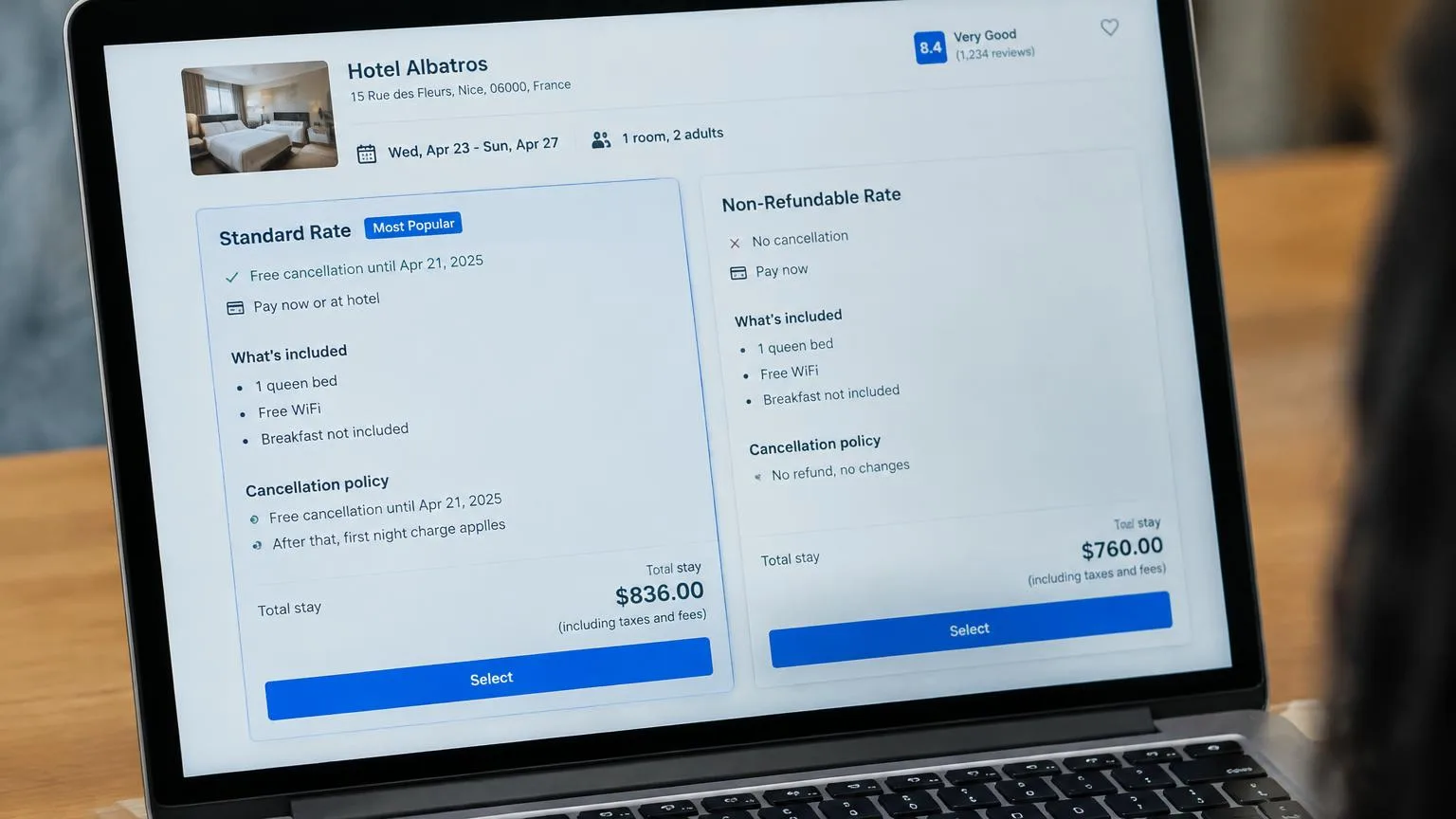
A price surprise can make guests question the whole offer. If the booking engine shows a different amount from what your website promised, they may hesitate or leave.
Compare Your Website Offers With the Actual Booking Results
Choose an offer on your website and test it in the booking engine using the same dates, occupancy, room, and rate. Confirm that the price, inclusions, and conditions match. Repeat the check for any special deals you promote.
If your property advertises through Google Hotel Ads, compare the listed rate with the booking results for the same stay. Rates and availability can change in real time, so check that the information still matches when you test the booking process.
Make sure guests can clearly see:
- The total stay price: The full amount for all nights, not only the nightly rate.
- The currency: So guests know which currency they’re comparing.
- Taxes and fees: Whether they’re included and, if not, how much they add.
- Extra charges: Such as a resort fee, cleaning fee, or city tax.
Check your starting-price claims, too. If you advertise “from $120 per night,” explain the conditions, such as specific dates, a minimum stay, or a nonrefundable rate.
Explain Rate Differences Before Guests Select One
Show the cancellation deadline, included extras, deposit, and payment timing beside each rate. Guests shouldn't need to open several pages to understand their options.
Here's an illustrative comparison. Replace these details with your hotel's actual policies:
| Term | Flexible rate | Nonrefundable rate |
|---|---|---|
| Cancellation | Free until 48 hours before arrival | No refund after booking |
| Breakfast | Included | Not included |
| Deposit | None | Full stay charged at booking |
| Payment | Pay at the hotel | Pay now |
Step 4: Connect Each Booking Button to the Right Next Step
A guest who's ready to book shouldn't have to search for the button or start over after clicking it. Each button should appear when it’s needed and lead where the guest expects.
Put Clear Booking Buttons Where Guests Make Decisions
Review your homepage, room pages, and offer pages. Place booking buttons beside the details guests rely on to plan their stay, such as room information, rate summaries, and package descriptions.
Match the button wording to what happens next. Use "Check Availability" for a date search and "Book This Offer" for a specific package. Keep the main button in a consistent position across pages, and make sure cookie banners, chat widgets, or pop-ups don't cover it.
Test What Happens After Every Booking Click
Click each important booking button and confirm that it opens the correct property, room, or offer. For instance, a "Book Now" button on a suite page shouldn't lead to a generic search that makes guests choose the suite again.
Where possible, use your booking provider's link settings to carry dates, guest numbers, and selected rooms or offers into the booking engine. If you can't configure this, ask your provider for help.
Finally, test dates when a room is unavailable. If your booking engine supports it, show other suitable rooms, alternative dates, or a contact option. Explain any restriction, such as a minimum stay or closed arrival date. A blank "no availability" message gives guests no next step.
Step 5: Fix Mobile Usability and Loading Problems
Your website's mobile friendliness can affect whether guests complete a booking. If a calendar is hard to tap or a page takes too long to load, guests may leave before reserving. That's why fixing these issues can help increase direct bookings and improve guest satisfaction.
Check Calendars, Buttons, and Forms on a Real Phone
Use your own phone, not only a desktop preview, to select dates, compare rooms, and enter guest details.
Watch for:
- Small controls: Date cells, guest counters, or buttons that are hard to tap.
- Cut-off text: Room names, rate conditions, or prices that don't fit the screen.
- Hidden totals: A total price that's below the visible area or behind another element.
- Covered fields: Form fields hidden by the keyboard while a guest types.
Adjust your website layout where you can, and send booking-engine issues to your provider. Also check accessibility basics: readable labels, enough contrast between text and background, and controls that work with a keyboard.
Improve the Pages Guests Need to Book
Run priority URLs, such as your homepage, room pages, and offer pages, through PageSpeed Insights. Review the results for both mobile and desktop. Where available, check real-user performance data and the issues the tool flags.
Start with problems you can act on, like:
- Oversized images: Resize and compress room photos while keeping the details guests need to judge the room.
- Heavy videos: Replace autoplay background videos with lighter versions or a still image on phones.
- Script or server issues: Ask your web developer to investigate slow scripts, plugins, or hosting.
- Booking-engine delays: Ask your booking provider to address slow availability searches or checkout steps.
PageSpeed Insights gives each page a performance score from 0 to 100. Google considers a score of 90 or higher good, 50-89 in need of improvement, and below 50 poor.
Pro tip: Focus on helping guests load and use your booking pages. A higher PageSpeed score is useful, but it doesn't measure completed reservations.
For more ways to reach travelers from other markets, read How Hotels Can Market to International Guests Online.
Step 6: Simplify Checkout and Make Payment Clear
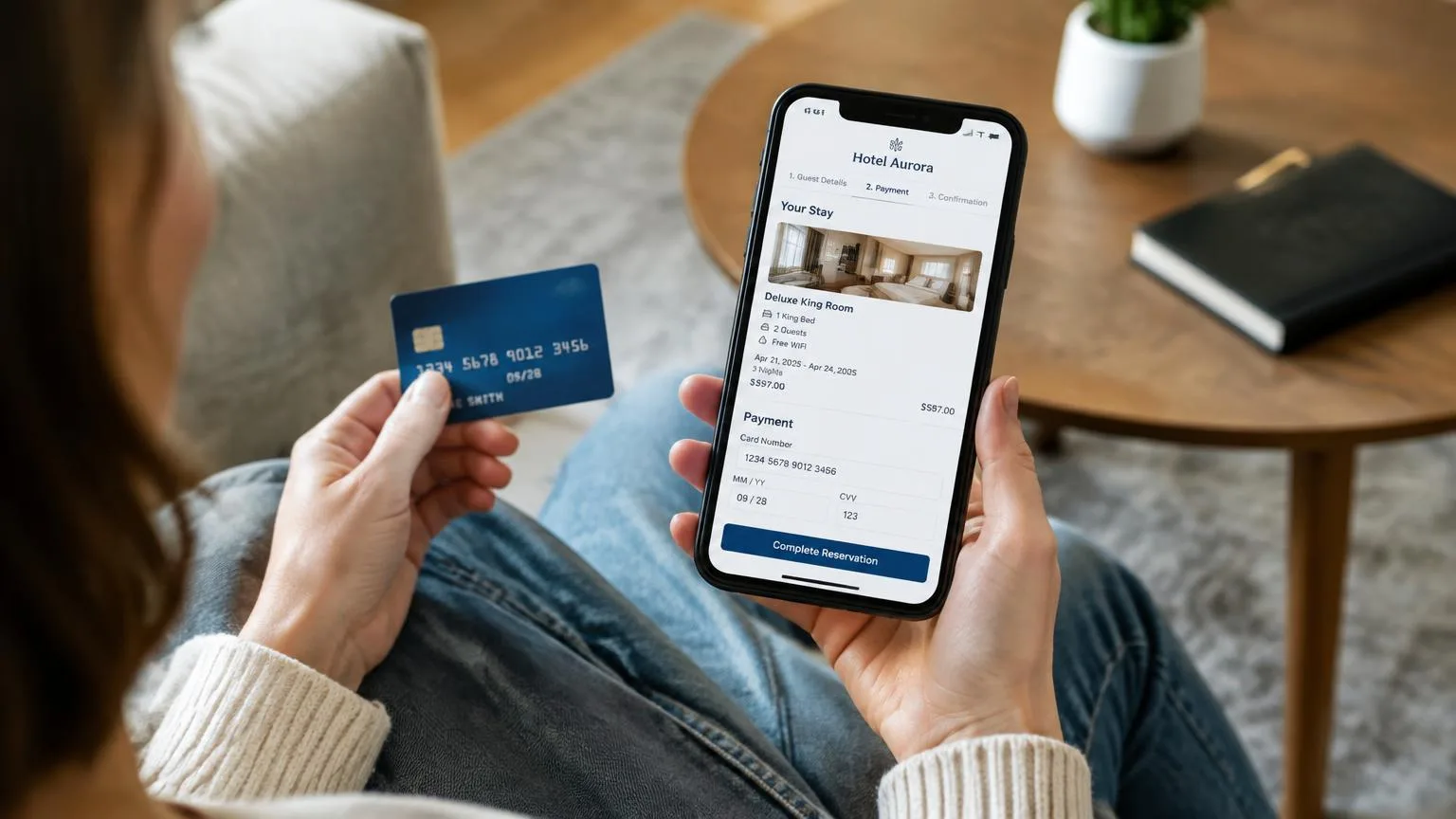
By the time guests reach checkout, they've already chosen your hotel. Your job now is to make finishing the reservation quick, clear, and trustworthy. Fortunately, a few simple conversion strategies can help remove friction at this stage.
Remove Unnecessary Questions and Keep Stay Details Visible
Review every required field in your booking form. Keep the information you need to complete and manage the reservation, such as the guest's name, email, and phone number. For other requests, make them optional or collect them later in a pre-arrival email.
Some other ways to make checkout easier include:
- Enabling autofill: Let browsers and phones complete names, emails, and addresses automatically.
- Allowing guest checkout: Don't require guests to create an account before booking, where your provider supports it.
- Showing progress: Let guests see how many steps remain.
- Keeping a reservation summary visible: Display dates, room, rate, and total throughout checkout.
- Allowing easy corrections: Let guests change dates or rooms without starting over.
If you offer extras such as airport transfers, tours, or late checkout, make them easy to add or skip. Update the total immediately so guests always know what they're paying.
Check Payment, Error Messages, and Confirmation
Show accepted payment methods before the final step, so guests don't discover too late that their card isn't accepted.
Clarify these three things before payment:
- What's charged now: The deposit or full amount taken at booking.
- What remains payable: Any balance due later or at the hotel.
- The charging currency: The currency the guest's card will be charged in.
Use your provider's supported test process to check form errors, payment failures, and confirmations. Error messages should explain what went wrong and how to fix it. Where supported, keep the guest's dates and other details so they don't have to start again.
After a successful test booking, confirm that the page shows a reservation reference and accurate stay details, and that the confirmation email arrives.
For international guests, check that supported languages display correctly and that name, address, and phone fields accept international formats. If you offer online check-in, include the next steps in the confirmation email.
Step 7: Retest Your Changes and Measure Completed Bookings
A change is worth checking against the problem it was meant to solve and whether completed bookings improve. Retesting and measurement help you see which updates are working.
Return to Your Original Fix List
After each important change, repeat the relevant part of your original walkthrough. Confirm that the problem is fixed on both a phone and a desktop.
Check out some examples of how to turn walkthrough observations into specific fixes:
| Problem found | Action to take |
|---|---|
| A room page's booking button opens a general search | Update the button to open the correct room or rate, where supported, and test it again. |
| Guests can't see the total stay price before choosing a rate | Show the full price, including applicable taxes and fees, in the booking results. |
| A payment error makes guests re-enter their stay details | Ask your booking provider whether dates and other details can be preserved after an error, then test the flow. |
Compare Results and Choose the Next Improvement
Use completed reservations as your main outcome. Define the website booking conversion rate the same way each time:
Website booking conversion rate = website sessions with a completed reservation ÷ total website sessions × 100
If your booking engine uses a separate domain, check that cross-domain measurement connects it with your website in Analytics. Then test that completed reservations are recorded correctly. Google Analytics explains how to set it up.
First, compare booking conversion and booking value before and after your changes. Next, account for other factors that can affect the results, such as seasonality, promotions, room availability, and traffic sources like Google Ads.
Since a before-and-after comparison can't prove that a change caused the results, treat it as directional evidence. Finally, if you have enough traffic, use A/B testing to evaluate smaller refinements, such as button wording or rate layout.
Get Help Improving Your Hotel's Booking Experience
Use your walkthrough notes to choose what to improve next. Start with the issue that causes the most friction, and identify whether it needs design, development, or help from your booking provider.
If you're not sure where to start, contact Nativo today. We can review your website and help prioritize the changes your team needs to make to strengthen your digital strategy and increase direct bookings.